Extracting product data from a PDF catalog is not the same as copying its text into a spreadsheet. Supplier catalogs use visual layouts, repeated headers, cross-page product groups, image grids, footnotes, and specification legends. A reliable workflow must reconstruct product records while preserving where each value came from.
This guide covers the operational method, including scanned pages, variants, images, units, and source evidence.
Define the Output Schema Before Extraction
Start with a minimum record that supports identity, search, comparison, and review:
| Field group | Example fields |
|---|---|
| Identity | Supplier, catalog name, SKU, model, product name, variant |
| Product attributes | Category, dimensions, material, finish, color, style |
| Commercial | Price, currency, unit, MOQ, lead time, effective date |
| Media | Primary image, variant image, page image |
| Evidence | Source file, page, table row, excerpt, confidence, review status |
Not every catalog contains commercial fields. Missing values should remain missing rather than being inferred from another supplier or an unrelated page.
Classify the PDF Before Processing
PDF catalogs generally fall into three groups:
- Text PDFs: selectable text and tables are embedded in the file.
- Scanned pages: every page is an image and requires OCR before structure can be reconstructed.
- Mixed PDFs: some pages contain text while others are scanned inserts, diagrams, or image-only spreads.
Check whether text selection works, whether fonts map correctly, and whether important specifications are embedded as images. A text extractor can return an empty or scrambled result while the page still looks normal to a person.
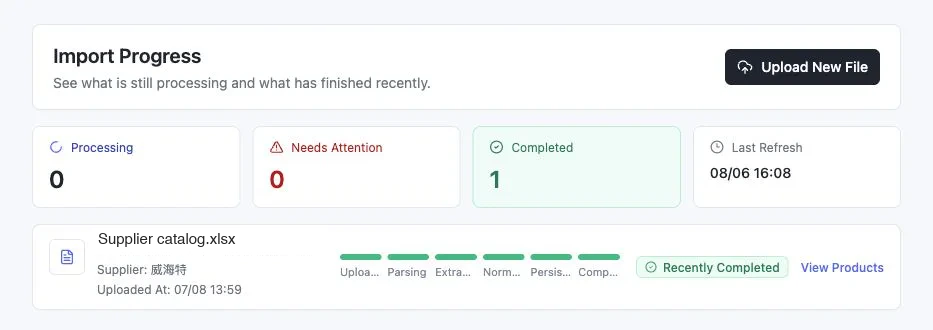
The processing stages shown here are operational states, not quality claims. A job can complete while individual fields still require review, especially when a PDF joins product identity on one page with dimensions, finishes, or prices elsewhere.
Segment Products Across Pages and Layouts
A catalog page may show one hero product with specifications below it, a grid of several products, or one table shared by images on the facing page. Multi-page families may define common materials on the first page and variant dimensions on later pages.
Segmentation should identify:
- Where a product or family begins and ends.
- Which heading applies to which specification block.
- Whether a row is a product, variant, accessory, or packaging option.
- Which notes apply to a page, section, family, or individual SKU.
- How facing-page images map to models in a table.
Preserve the page range for every candidate record. Cross-page context should be explicit rather than silently copied.
Extract Identity Before Attributes
Resolve supplier, SKU or model, product name, and variant relationship first. Then attach attributes and images. This reduces the risk of assigning a finish, dimension, or price to the wrong product.
When a catalog uses one base model with several sizes and colors, choose a consistent variant structure. Do not create separate products simply because the PDF repeats the same model beside each image, and do not merge rows when size or pack configuration changes the commercial item.
Normalize Dimensions and Units Carefully
Parse dimension labels as well as values. W x D x H, seat height, carton size, and package volume all use dimensions but describe different facts. Convert units only after the field meaning is known.
Store the original expression alongside the normalized value. For example:
| Source | Normalized field | Normalized value |
|---|---|---|
900W x 820D x 760H mm | Overall width | 90 cm |
900W x 820D x 760H mm | Overall depth | 82 cm |
900W x 820D x 760H mm | Overall height | 76 cm |
If the unit appears only in a table header or footnote, preserve that source context for every affected row.
Connect Images to the Correct Product
Product images are often more important to sales than descriptions, but they are easy to misassign. Use captions, nearby model labels, reading order, page regions, and repeated image identifiers together. A page-level image is not automatically a product-level image.
Flag cases where one image may represent a family, where a finish swatch applies to several variants, or where an image contains accessories not included in the SKU. Keep the page image available during review.
Preserve Source Evidence for Every Critical Value
For product identity, dimensions, materials, price, MOQ, and lead time, store enough evidence to return to the exact file and location. Useful evidence includes page number, table row, bounding area, source excerpt, and the image used.
Source evidence supports correction and audit. It also lets a reviewer distinguish a supplier-provided value from a normalized or enriched field.
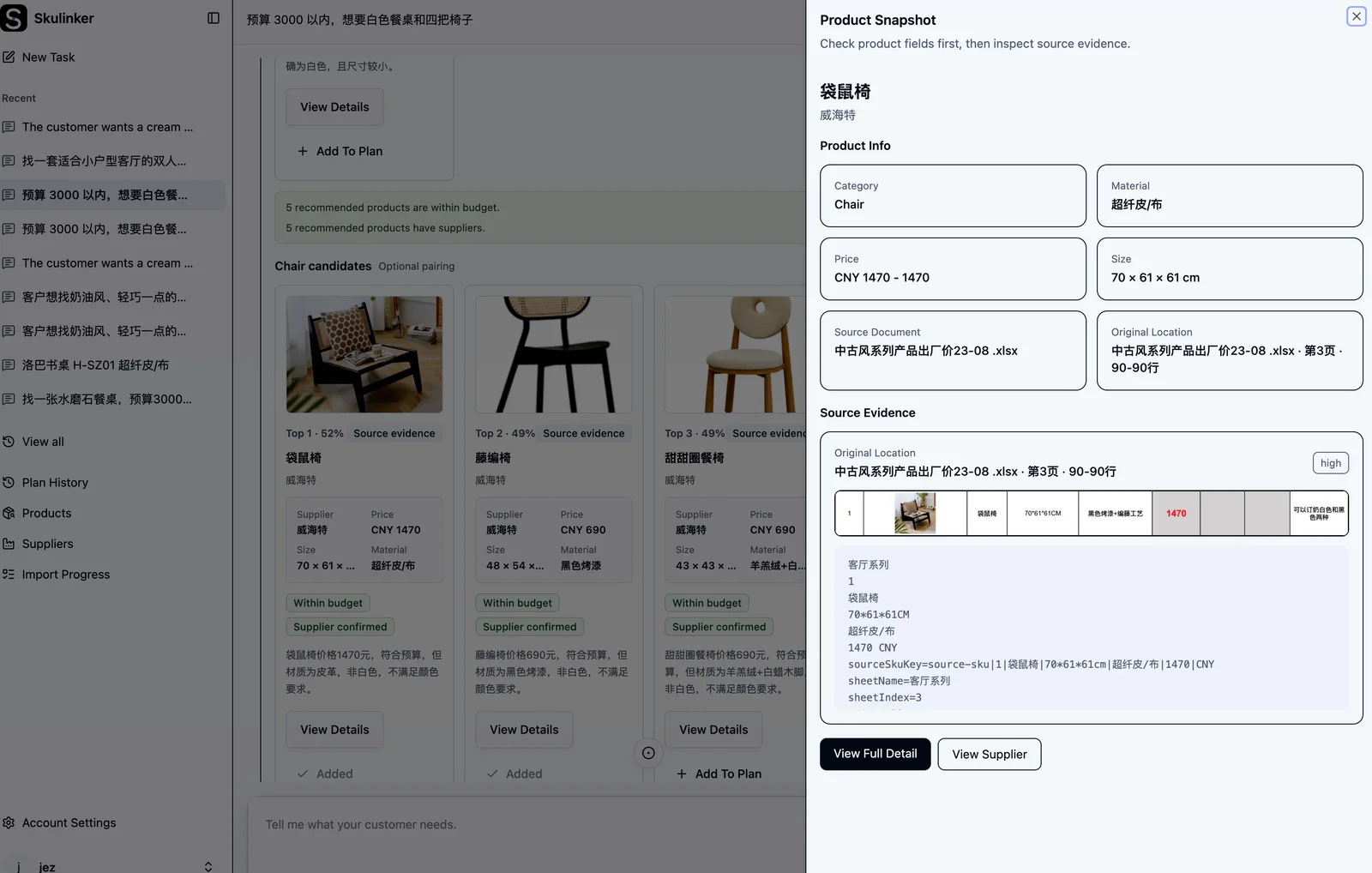
In this real product view, the usable record and its origin remain visible together. That makes it possible to correct a value without losing whether it came from the supplier, a normalized field, or later enrichment.
Interactive Demo in this guide
See what happens after catalog extraction
The sanitized Demo starts with structured supplier records and continues through matching, source review, selection, and export.
No sign-up required. Click the input below to try it.
- Describe the space and what you need
- Agent understanding
- Matched from the supplier file
- Details & source
- Add to plan
- Plan preview & export

Validation Checklist Before Publishing
- Every record has a supplier and source file.
- SKU or model identity is present, or the record is explicitly marked as lacking one.
- Variants are not duplicated as unrelated products.
- Dimensions have field meaning and units.
- Images are assigned confidently or flagged for review.
- Commercial fields include currency and unit basis where present.
- Cross-page and multi-page values retain their page range.
- Scanned pages have been reviewed for OCR errors in codes and numbers.
- Missing fields are not filled with unsupported guesses.
- The record has an appropriate readiness state for search, quotation, or ERP entry.
Where Skulinker Fits
Skulinker extracts product information from supplier PDFs and related files, keeps records connected to source evidence, supports review and normalization, and publishes approved products into a searchable private library. Sales can then search by customer need and export an editable quotation without losing the original supplier context.
Related Extraction and Quality Resources
- Try the Free Supplier Catalog Extraction Tool
- AI Product Data Extractor
- Supplier Product Data Ingestion
- Product Catalog Data Cleaning
- Product Data Quality Checklist
- Supplier Catalog Management
Next step
Start with one catalog, not a full migration
Use the public extraction tool for a bounded file, then decide which fields and review rules belong in the private workflow.
Continue reading