
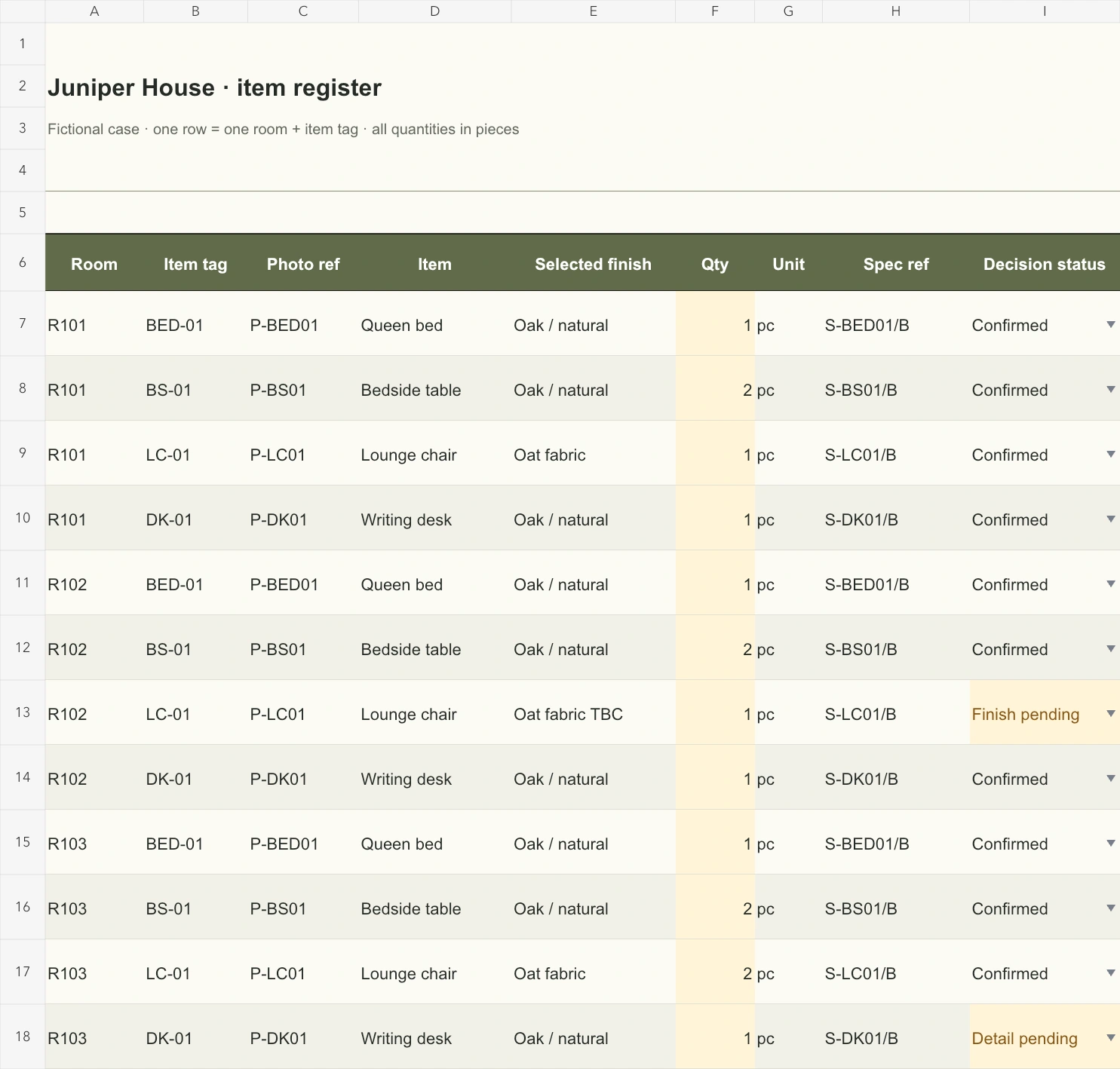
Use this furniture schedule template to reconcile a room layout with selected furniture. The Excel case contains three guest rooms, twelve allocation records, sixteen pieces and two unresolved decisions. Replace the rooms and selections, check the counts against your drawing, then issue a dated furniture schedule. Skulinker provides the separate supplier-information workflow; project allocations stay here.
Download the English furniture schedule template or download the Chinese workbook. This furniture schedule template uses the same fictional Juniper House case in both languages. Item selections, document references and room counts are teaching data.
Open the allocation, then check each room
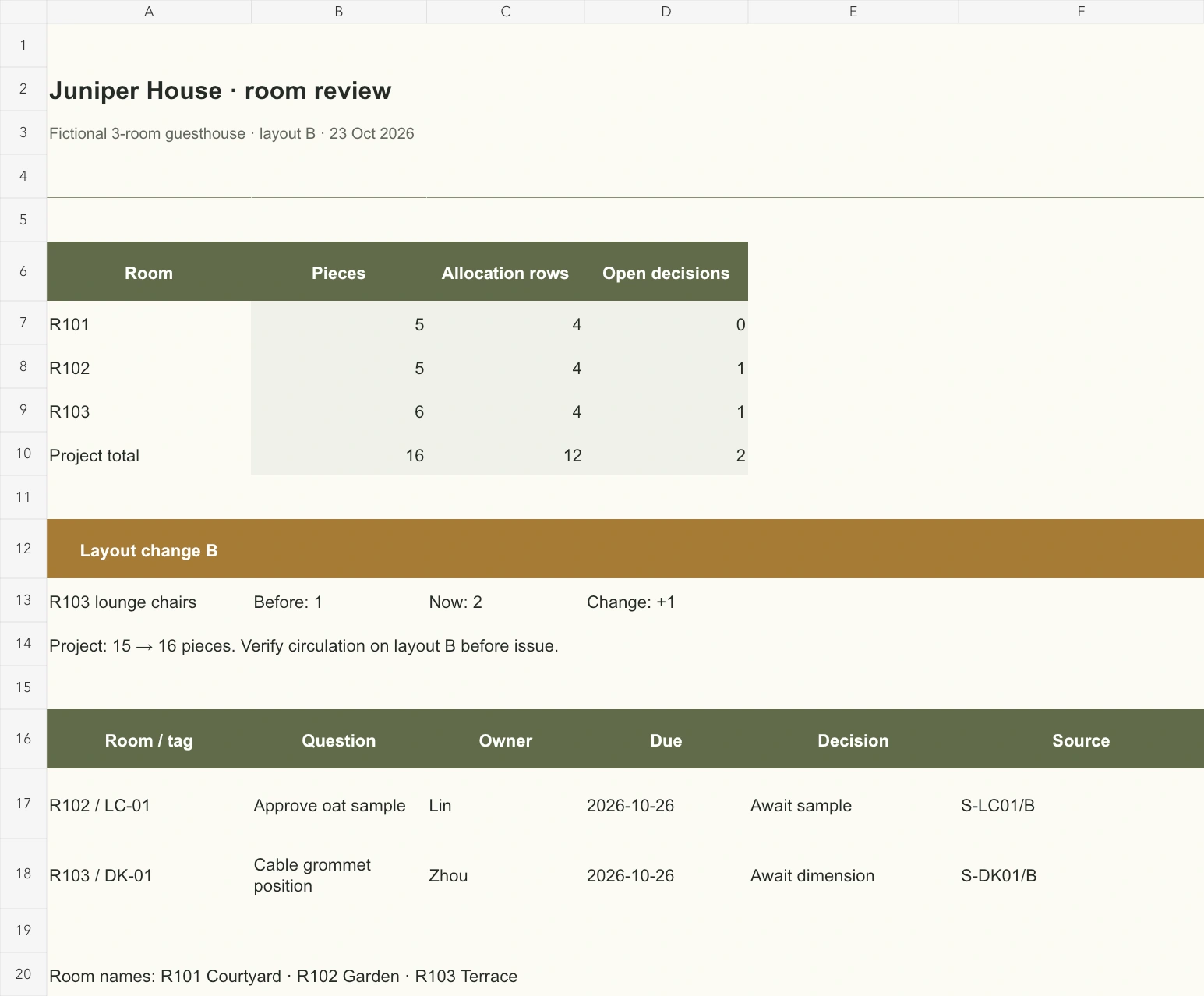
The furniture schedule template opens on Room review: R101 Courtyard requires five pieces, R102 Garden five and R103 Terrace six. Sixteen pieces occupy twelve room-item rows. Use this furniture schedule summary to check completeness before approval.
Item register holds one row per furniture type and room. Two matching bedside tables share one row with quantity two; the same tables in another room get a separate row. The furniture schedule therefore identifies an allocation by room plus tag. Correct furniture schedule quantities in this register rather than overwriting a summary total.
Read the guesthouse before replacing it
Each room contains one BED-01 queen bed, two BS-01 bedside tables and one DK-01 writing desk. LC-01 identifies the shared lounge-chair type: one each in R101 and R102, two in R103 after revision B. In this furniture schedule example, a repeated LC-01 is valid across rooms; a duplicate R103 / LC-01 would require investigation.
Natural oak applies to beds, bedside tables and desks. Chairs use oat fabric, but R102's sample awaits approval; R103's desk needs its cable-grommet detail confirmed. The furniture schedule template keeps those two decisions separate from confirmed quantities.
P-LC01 is a photo placeholder, not attached supplier-approved photography. Replace it with an approved project reference and include the image in the handoff folder. Keep photo identity, item tag and specification revision aligned in your furniture schedule.
Reconcile a layout change without altering other rooms
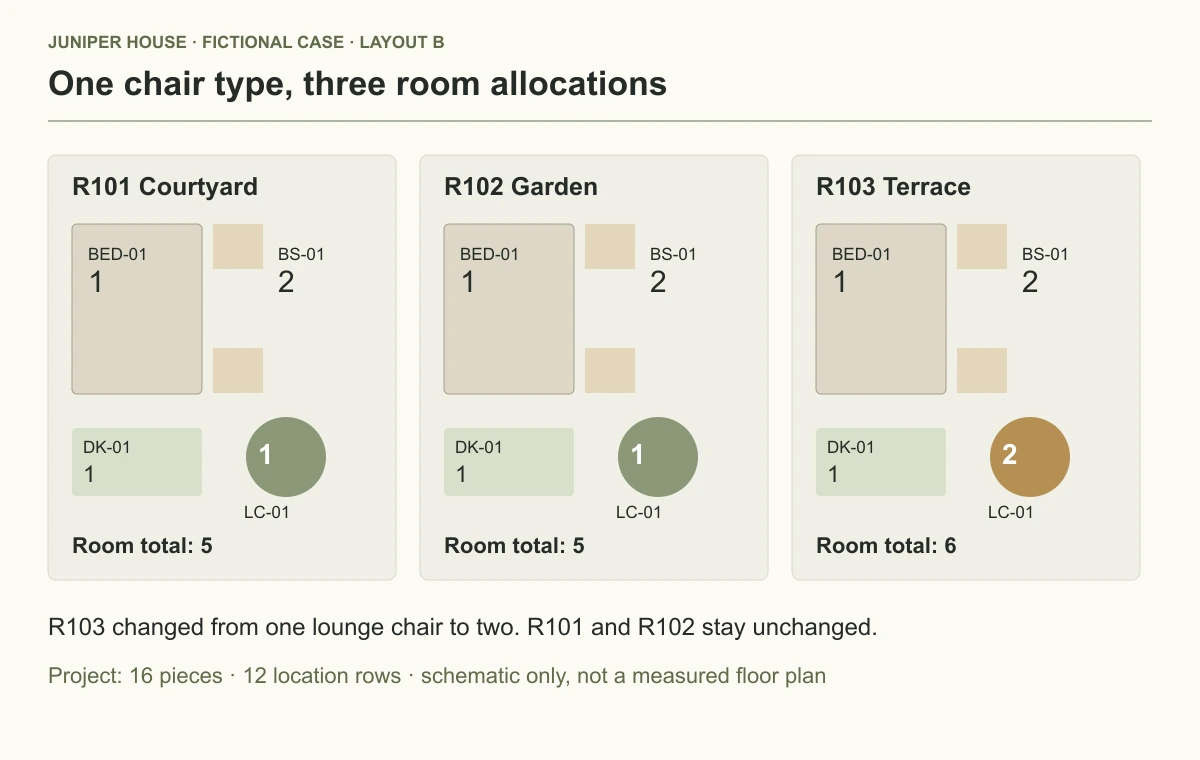
Revision A placed one lounge chair in R103; revision B requires two. In the furniture schedule template, change only R103 / LC-01, retaining S-LC01/B. The R101 and R102 allocations remain one each.
Check the furniture schedule independently: three beds + six bedside tables + three desks + four chairs = sixteen pieces. The extra chair raises R103 from five to six and the project from fifteen to sixteen.
Save a practice copy of the furniture schedule template and change that two back to one. R103 should return to five and the project to fifteen; restore two afterward. Compare the furniture schedule with the drawing to check actual clearances. This schematic shows allocation relationships rather than a measured floor plan.
View full-size image
Layout B allocates the same LC-01 chair to three rooms; R103 now requires two.
Complete the register in a controlled sequence
- Replace rooms. Use current layout codes; keep identifiers stable when room names change.
- Assign tags. In the furniture schedule template, share a tag only when the selected item and configuration match; split different sizes or finishes.
- Attach references. Enter the approved photo and current specification revision in the furniture schedule, not just a product name.
- Count consistently. This case uses pieces. Define any sets before comparing them with piece totals.
- Assign decisions. Mark the unresolved selection, then record its question, owner and due date on Room review.
- Check the drawing. Reconcile each room and shared-item total before issuing the furniture schedule template.
Use the native Excel table filters and frozen header while reviewing. Sort the furniture schedule through the table header so whole records move together; sorting quantities alone detaches them from rooms and specifications. Spot-check one room-tag pair afterward.
Give each open decision an owner
Lin owns the R102 fabric sample and Zhou the R103 desk-grommet question, both due on 26 October in the fictional case. Replace these names and dates in your furniture schedule template. After approval, update both the register status and review entry.
The furniture schedule summary covers register rows 7–60. Extend formulas beyond that range and add summary rows for new rooms. The decision area is manual: a new pending allocation does not create its own question, owner or deadline. Review both areas when expanding the furniture schedule.
View full-size image
The review totals 16 pieces and keeps the two unresolved decisions visible.
Issue a readable room allocation
Filter the furniture schedule by room, select the table range and print landscape, one page wide. In the furniture schedule template, keep tag, quantity and specification reference together on each printed row. Add Room review when the recipient needs totals and decisions; check printer margins in preview.
Name the issued furniture schedule with project, layout revision and date. Include specifications and photographs, or an accessible folder link, so the recipient can trace each selection.
Use a furniture specification sheet for construction details and a bill of quantities for furniture for measured, priced supply scope. Shared furniture schedule tags connect these documents without replacing their different checks.
Keep the checked furniture schedule template beside its source layout. For supplier-document review and shortlisting, visit the Skulinker homepage and public Demo. The homepage states current availability; the issuing team checks room counts and approvals.
Next step
See the supplier-file workflow in the Skulinker Demo
Explore how supplier files connect to product records, source review, selection, and export. Check the homepage for current service availability.
Continue reading